
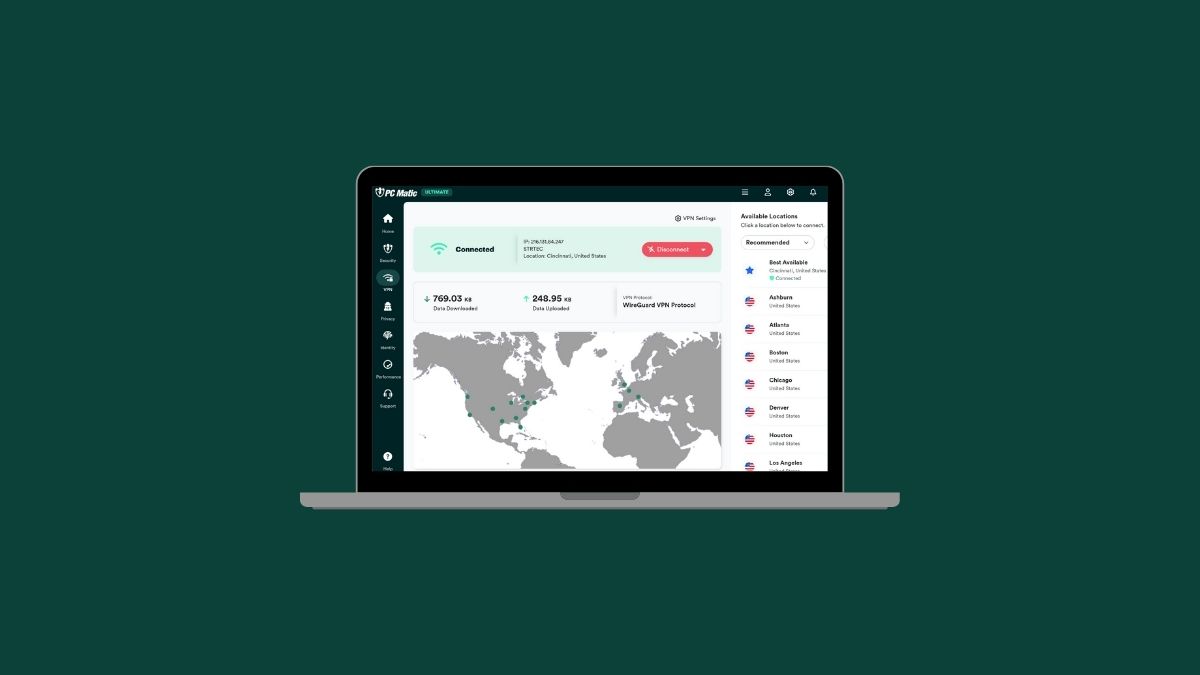
Do you have PC Matic VPN but having troubles getting it connected? While VPNs are essential tools for privacy, occasional connectivity hiccups can happen. Whether your VPN isn’t launching when your computer starts or specific websites refuse to load while it’s active, here is a quick guide to troubleshooting these common issues.
Issue 1: The VPN Won’t Connect Automatically
If your VPN isn’t automatically securing your connection when you boot up your device, you may just need to adjust a few settings.
1 – Check for Updates:
First, ensure you are running the latest version of PC Matic. Go to Settings > About in the app to view your version. If it doesn’t match the latest version found in the release notes, you may need to manually update the software.
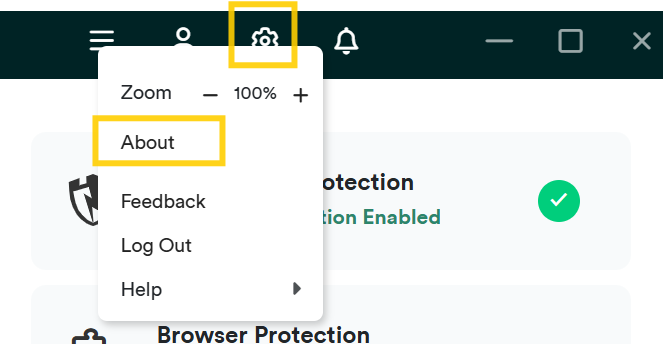
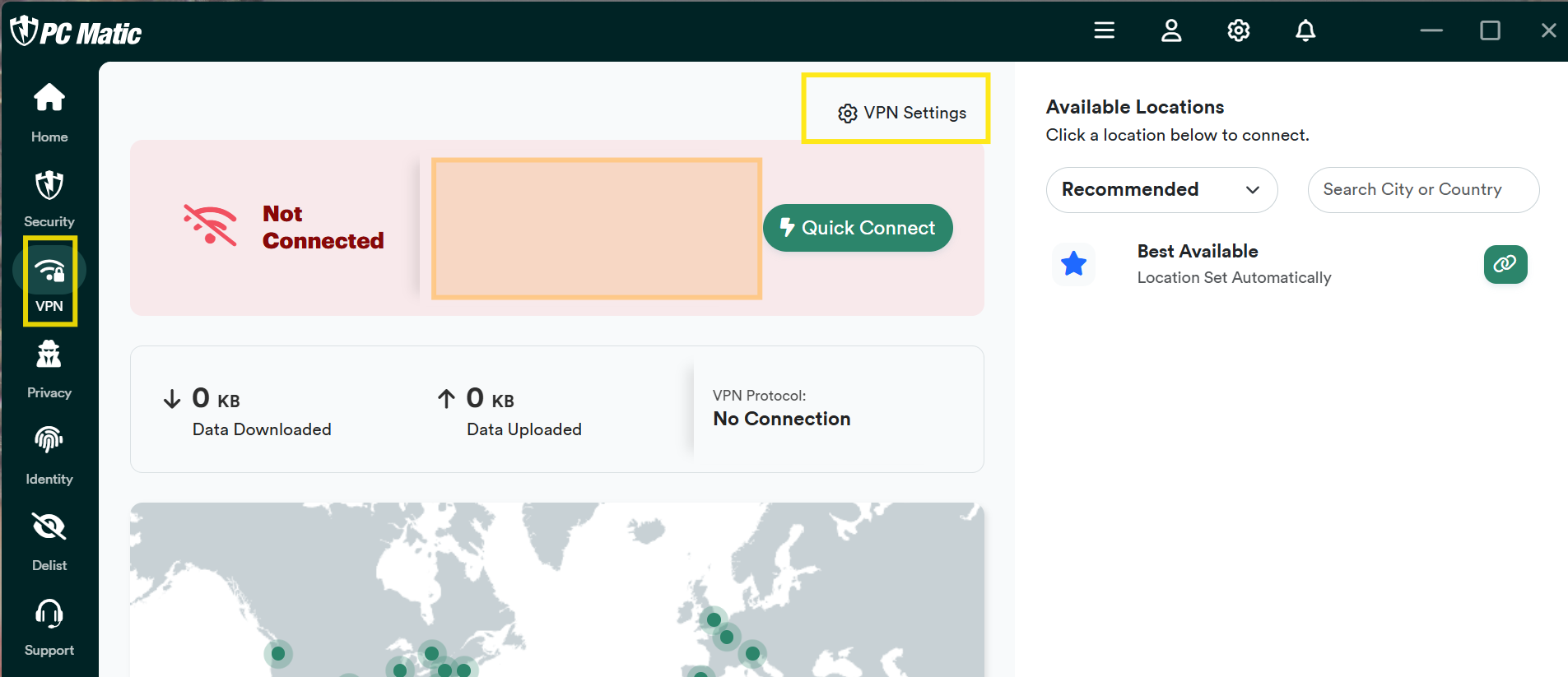
2 – Adjust VPN Settings:
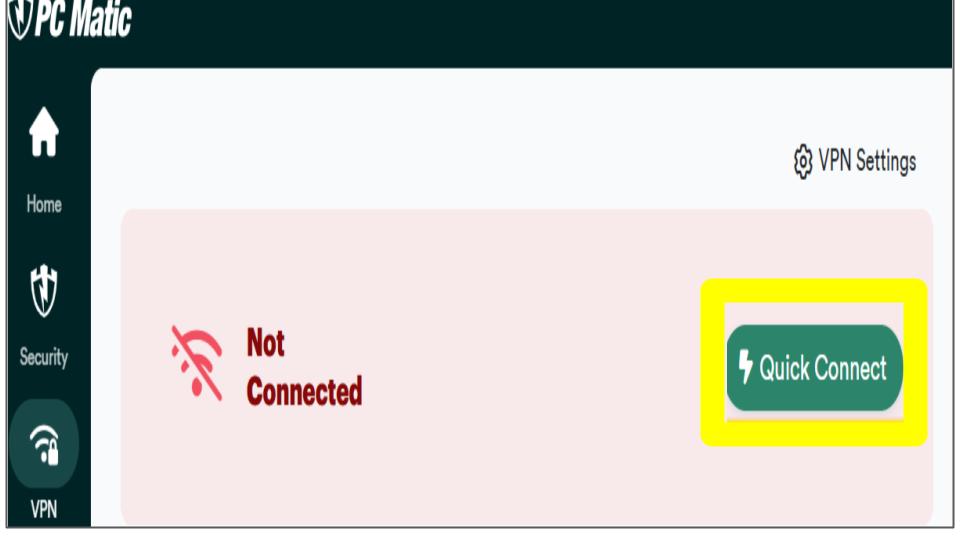
Open the VPN Tab and click VPN Settings.
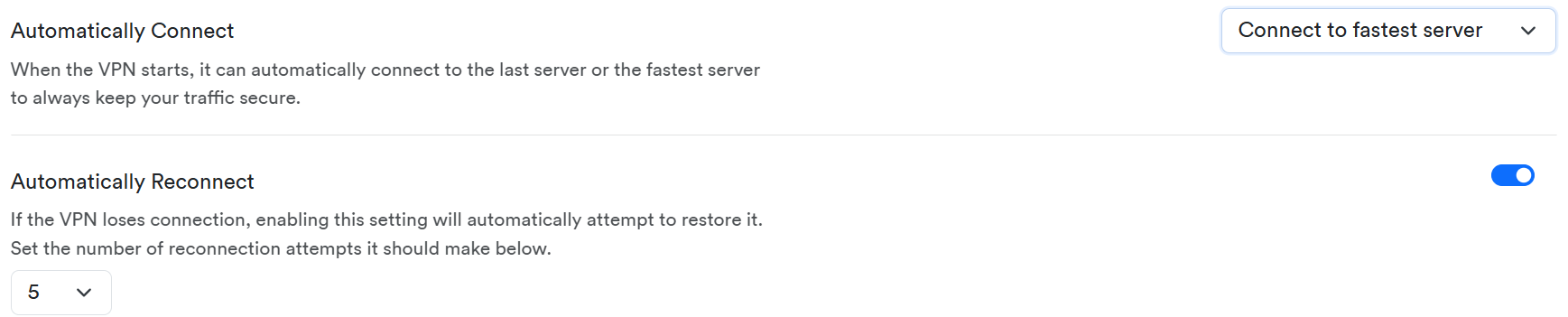
Look for the options labeled Automatically Connect and Automatically Reconnect. Make sure both of these are set to the “On” position.’
3 – Re-establish Connection:
Once your settings are saved, go back to the VPN tab and click Quick Connect. After it connects successfully, the automatic connection feature should kick in the next time you restart your computer.
For the full step-by-step guide and screenshots, read the full article here: PC Matic VPN does not automatically connect
Issue 2: Websites Won’t Load While Using the VPN
Sometimes a website (especially banking, trading, or streaming sites) might block your access because they require a specific IP address or have strict security rules that flag VPNs.
If you are facing this, try these three fixes in order:
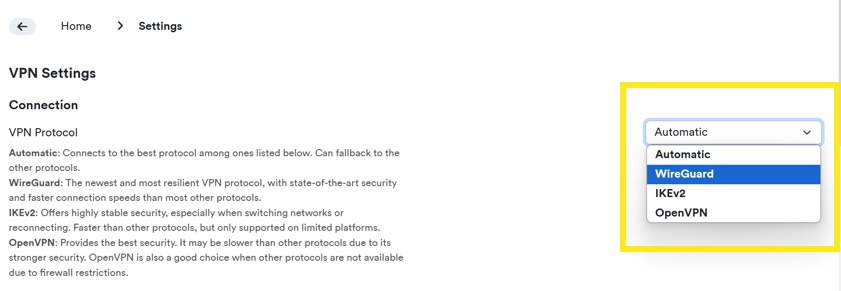
1 – Change Your Protocol:
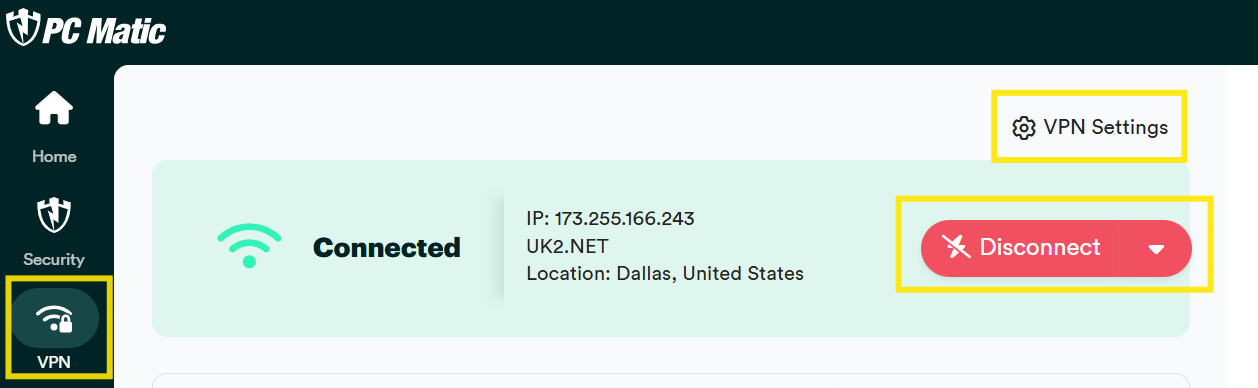
Disconnect the VPN and go to the VPN Setttings.
Change the VPN Protocol to “Wireguard” and try connecting again. If that fails, try the other options like “IKEv2” or “OpenVPN.”
2 – Switch Servers:
Disconnect and look at your server list.

Choose a different server that is close to your physical location and has a low “Current Load.” Sometimes simply switching servers resolves the blockage.

3 – Use Split Tunneling:
If the site still won’t load, you can bypass the VPN for that specific website while keeping the rest of your activity secure.
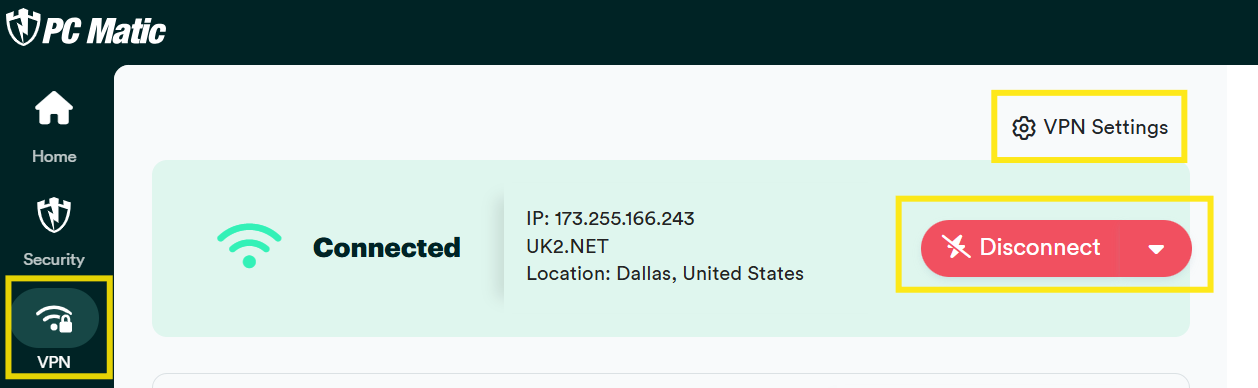
Disconnect the VPN and go to Settings.
Turn on Split Tunneling.

Copy the URL of the website giving you trouble.
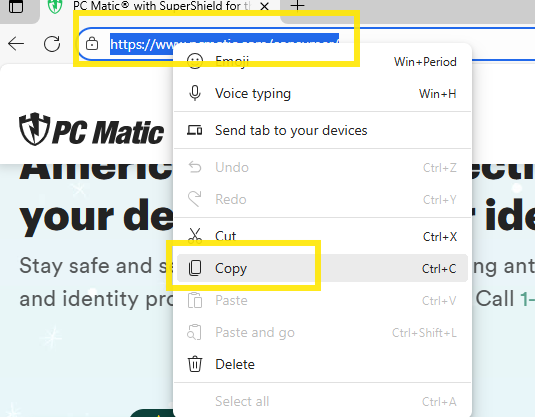
Paste it into the Domains tab in the Split Tunneling section and click Add Domain.

Make sure to check Include Subdomains so the entire site functions correctly.

For detailed instructions on changing protocols and setting up split tunneling, check out the full guide: Website will not connect while using VPN
Stay Secure and Connected
In today’s digital landscape, using a VPN is more important than ever. It encrypts your personal data, masks your online identity, and ensures that your browsing habits remain private from prying eyes and trackers. We want to ensure you get the most out of that protection. If you need more help after trying these steps, please email our support team at [email protected].