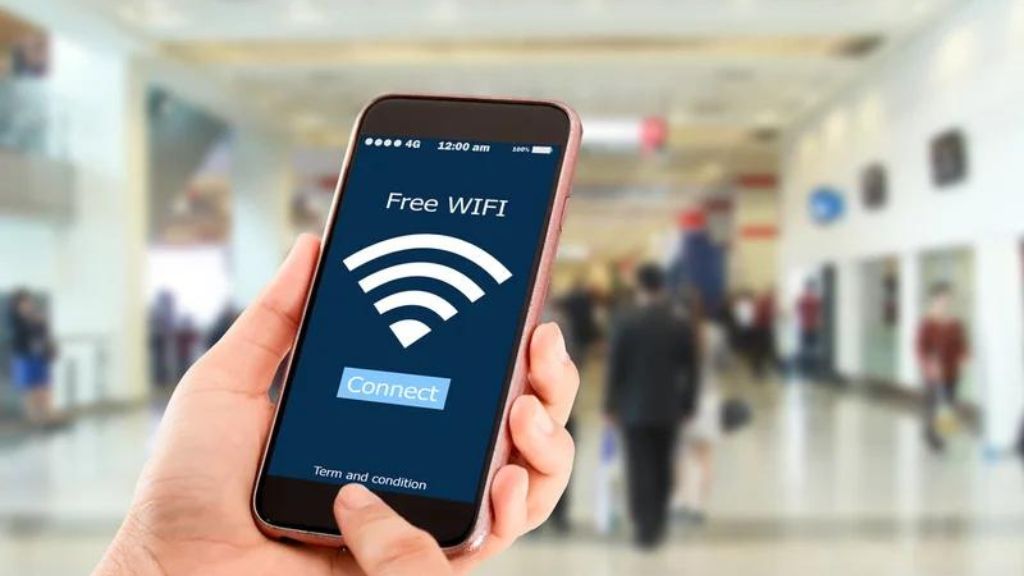
Travelers are often warned about the dangers of public Wi-Fi in airports and hotels. Despite these risks, the need to stay connected is stronger than ever. Unfortunately, hackers exploit this by launching fake Wi-Fi hotspots designed to steal your credentials, also known as “Evil Twin” attacks.
The Hidden Danger: How Evil Twin Attacks Work
An “Evil Twin” attack occurs when a hacker sets up a rogue Wi-Fi access point that mimics a legitimate one (like “Airport_Free_Wifi”). Unsuspecting users connect, and the hacker intercepts everything from email logins to bank credentials. Recently, an Australian hacker was arrested for using this exact method on domestic flights and in airports to steal authentication details.
Why Hackers Love Airport Wi-Fi
Airports are prime targets because third-party providers often manage the networks. For example, Dallas Fort Worth International Airport’s Wi-Fi is managed by Boingo, meaning the airport’s internal IT team has limited control over security protocols. A determined hacker with less than $500 worth of equipment can create a rogue network and start stealing data in minutes.
How to Avoid Becoming a Victim
Experts recommend avoiding unsecured networks and using alternatives to protect yourself from fake Wi-Fi networks. One effective solution is to use your phone’s hotspot. This creates a secure connection with a strong, private password.
If a personal hotspot isn’t feasible, you should always connect through a VPN (Virtual Private Network) like PC Matic VPN. A VPN encrypts your network traffic, ensuring that even if a hacker manages to intercept your data, they won’t be able to read it. Additionally, a VPN can help mask your location by hiding your IP address.
How to Install and Secure Your Device with PC Matic VPN
Don’t leave your security to chance. Follow these steps to encrypt your connection before your next trip.
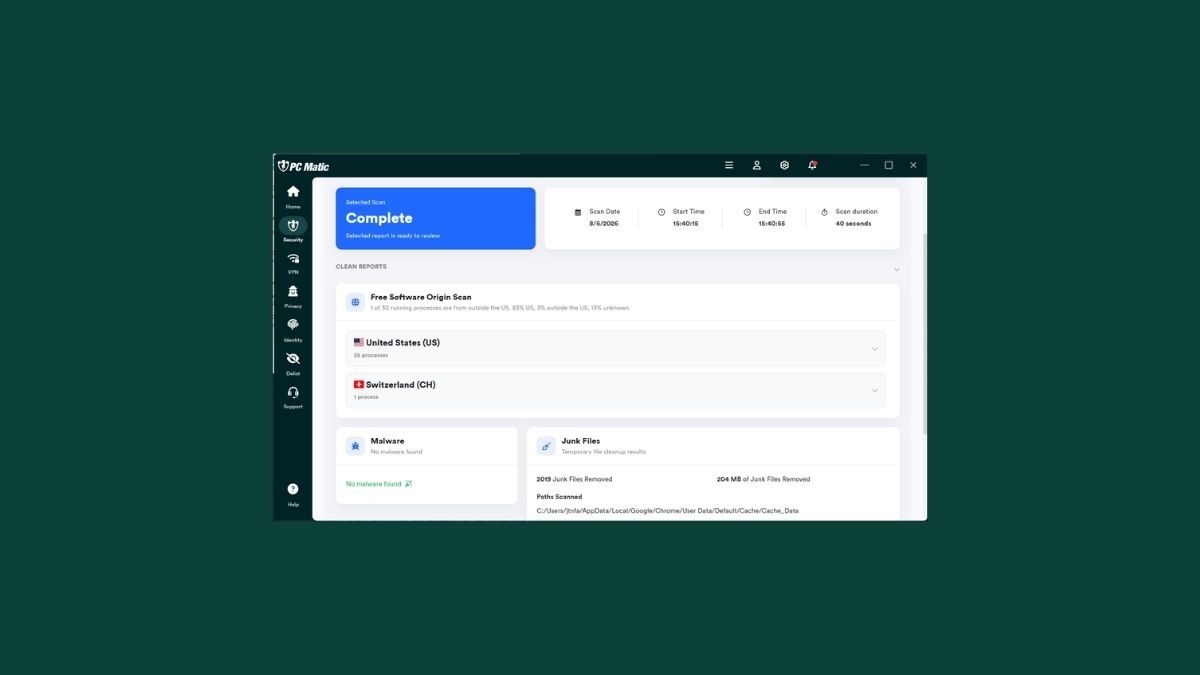
PC Matic VPN is built into PC Matic 5/6, which means if you already have it installed, you don’t need to go any further! Just click the tab labeled VPN in the left navigation of PC Matic, as seen in the image below. If you do not have a PC Matic Antivirus subscription, please use the VPN-only installer.
1 – Download the App
Click the link for your specific device to download the official PC Matic VPN app:
- Windows: Download the VPN-only installer
- Android: Download on Google Play Store
- iPhone & iPad: Download on Apple App Store
- Mac: Download the macOS Installer
2 – Logging into the PC Matic VPN App
- Enter the email address associated with your PC Matic account and click Send Verification Code.
- Enter the verification code delivered to your inbox.
- Alternatively, click Login with email and password instead and enter your credentials.

3 – Connecting To a PC Matic Server
2.1 Using Quick Connect
Quick Connect will automatically connect you to the best available server.
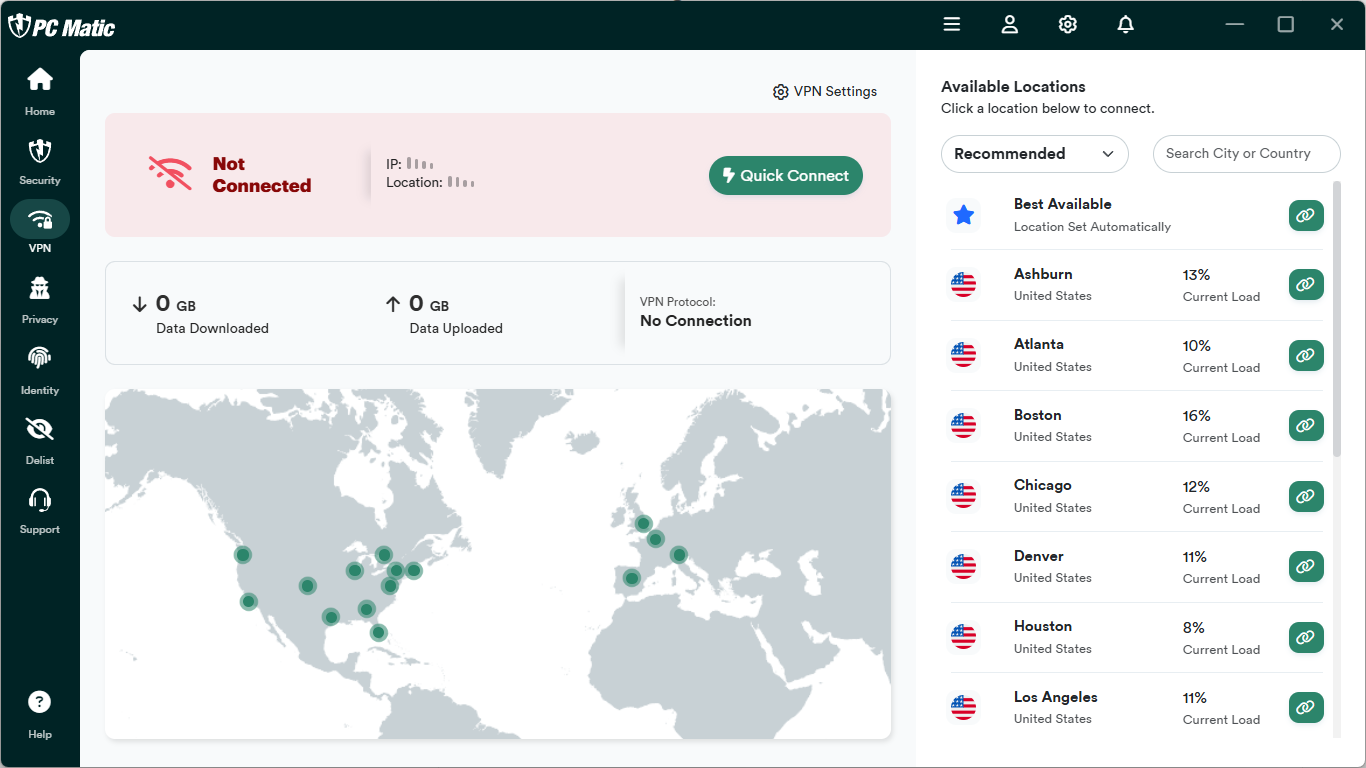
To use Quick Connect, click the green Quick Connect button at the top of the window.
2.2. Manually Selecting a PC Matic Server
You can also view a list of all available PC Matic Servers and select the one that you want to connect to.
- From the dashboard, scroll through the recommended locations and click the “green chainlink button” to connect, or click a location on the map to connect.
- Click “Search city or country” next to the recommended list if you wish to connect to a specific country outside of the United States or within the United States.
4 – VPN Status
VPN Status Page: Using the link below, you can check the status of our VPN, including the servers, support, and API. If you’re having trouble connecting to the VPN, check this page to ensure there are no performance issues from PC Matic’s side.
https://www.pcmatic.com/vpn/status.asp
You can learn more about detailed VPN setup here: PC Matic VPN Knowledgebase Guide.
Why PC Matic VPN is Your Best Travel Companion
- Military-Grade Encryption: Uses 256-bit AES encryption to ensure your data is unreadable to hackers, even on a rogue network.
- Masked Identity: Hides your IP address, making it nearly impossible for cybercriminals to track your physical location or browsing habits.
- Public Wi-Fi Shield: Designed to block attempts to redirect you to fake captive portals and phishing sites.
- Fast Global Servers: Switch your virtual location to bypass geo-blocks and access your favorite content from back home.
Pro Tips for Extra Security
Avoid Sensitive Tasks: Even with a VPN, avoid accessing high-stakes accounts like online banking while on public networks if a private cellular connection is available.
Disable Auto-Connect: Prevent your phone from joining known SSIDs automatically; this is how many “Evil Twin” attacks succeed.
Use 2FA: Even if a hacker intercepts a password, Two-Factor Authentication provides a critical second line of defense.