
In today’s world, using the internet safely is more important than ever. Whether you’re checking email at a coffee shop or shopping online at home, your personal information can be at risk. That’s where a VPN comes in.
VPN stands for Virtual Private Network. It creates a secure tunnel between your device and the internet. This tunnel hides your online activity, protects your data, and makes it harder for hackers, companies, or even your internet provider to track you.
Why Use a VPN?
Here are some key benefits of using a VPN:
- Stay Safe on Public Wi-Fi: Protect your information on hotel, airport, or coffee shop Wi-Fi.
- Keep Your Browsing Private: Prevent your internet provider or advertisers from seeing what you do online.
- Access Content Around the World: Some websites or videos are blocked depending on your location. A VPN can help you view content without restrictions.
- Secure Your Data: A VPN helps prevent hackers from stealing your passwords, credit card numbers, and other personal information.
How to Use the PC Matic VPN App
Using the PC Matic VPN is easy. Below are simple steps to help you get started and stay protected.
1. Logging into the PC Matic VPN App
- Open the PC Matic VPN app on your device.
- Enter your PC Matic username and password.
- Click “Login”.

You’re now signed in and ready to connect to a secure server.
2. Connecting to a PC Matic Server
2.1 Using Quick Connect
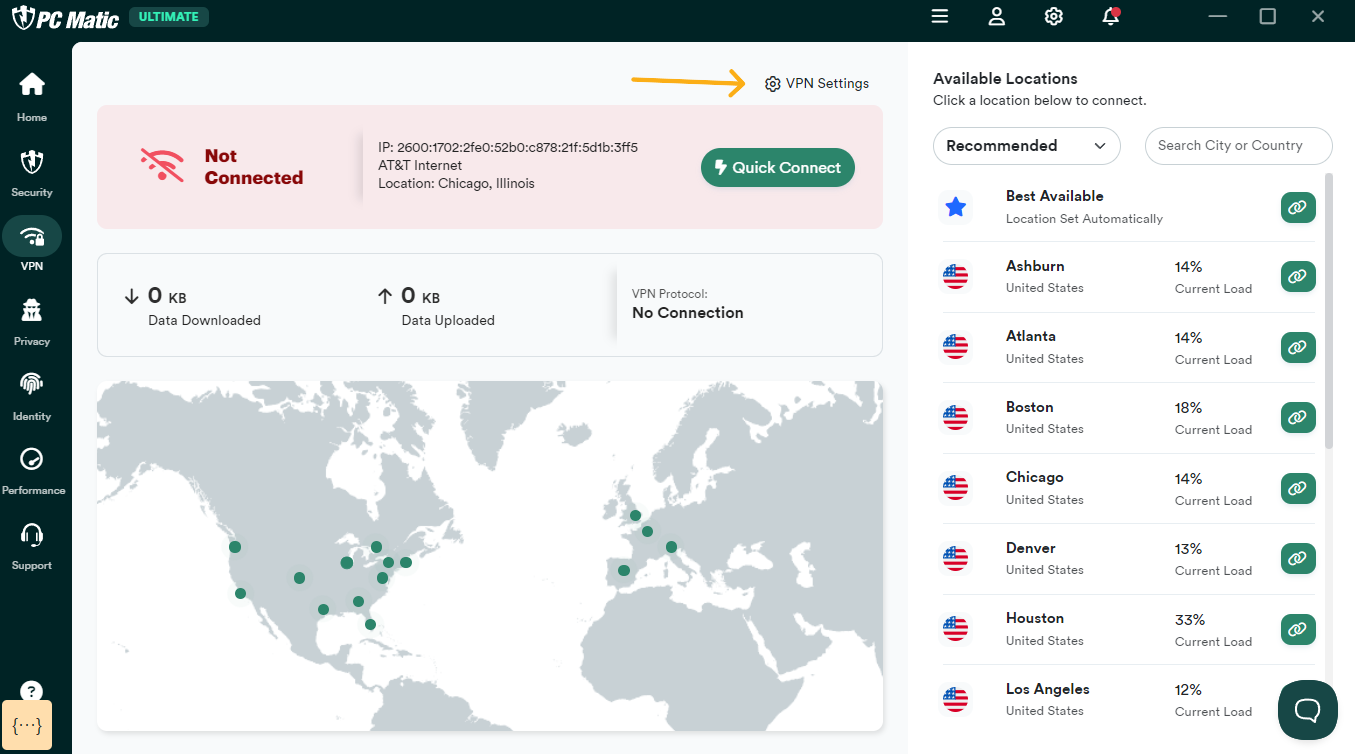
- After logging in, click the “Quick Connect” button.
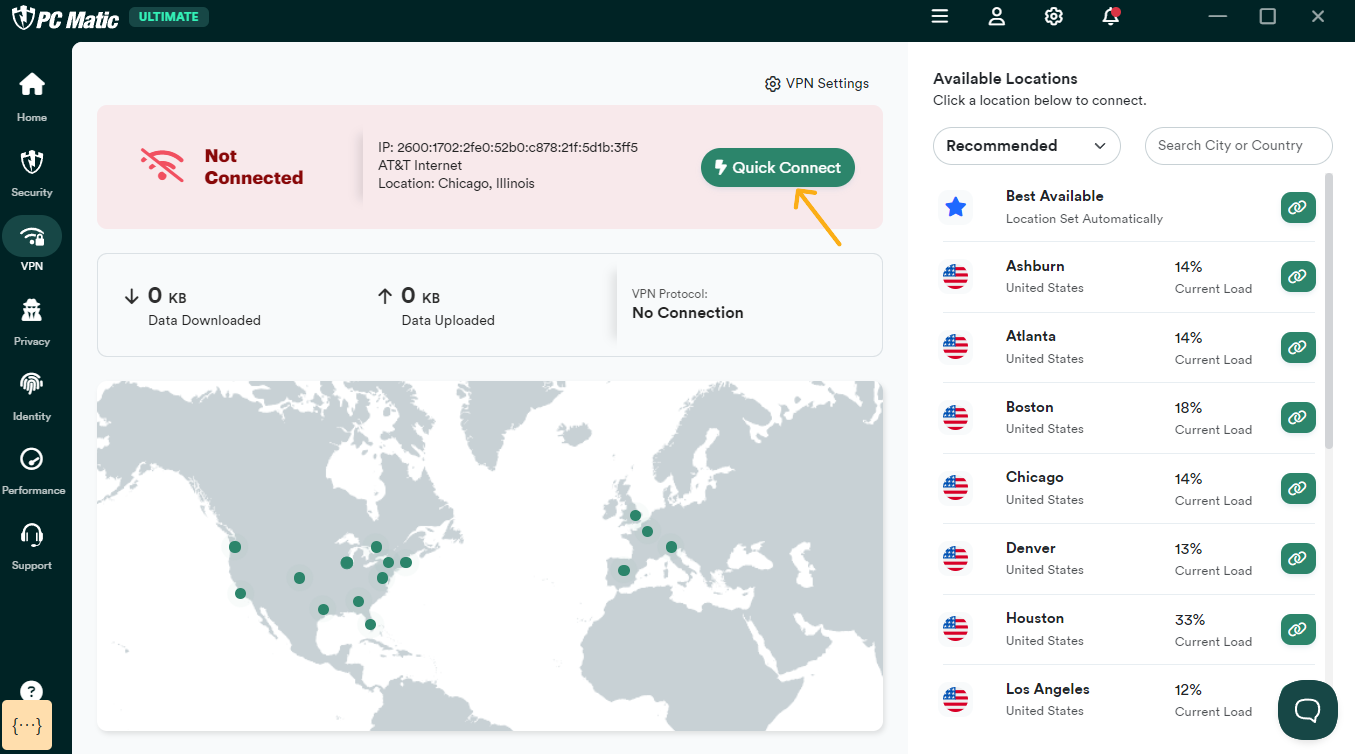
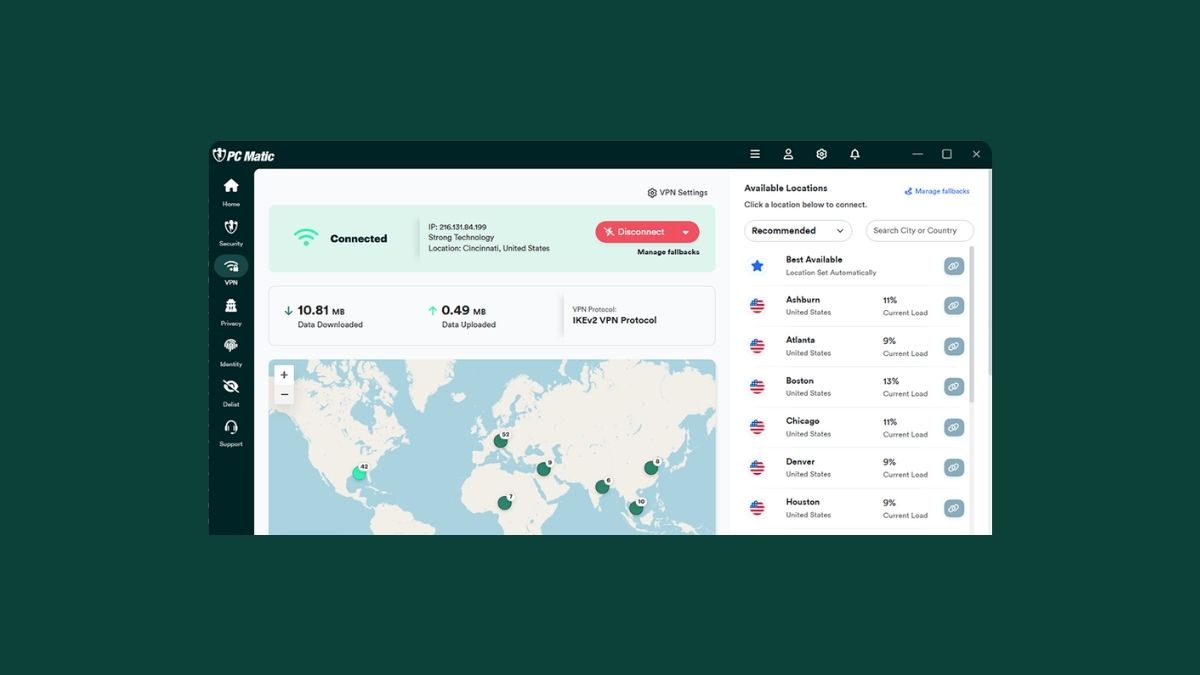
- The app will automatically choose the best server based on your location.
- Once connected, your internet is secure!
2.2 Manually Selecting a PC Matic Server
- Click the “Locations” tab in the app.
- Browse the list of available servers by country or city.
- Select the one you prefer and click “Connect”.
This is helpful if you want to access content from a specific country or need a faster server.
3. Configuring PC Matic VPN Settings
The app gives you control to fine-tune your VPN experience.
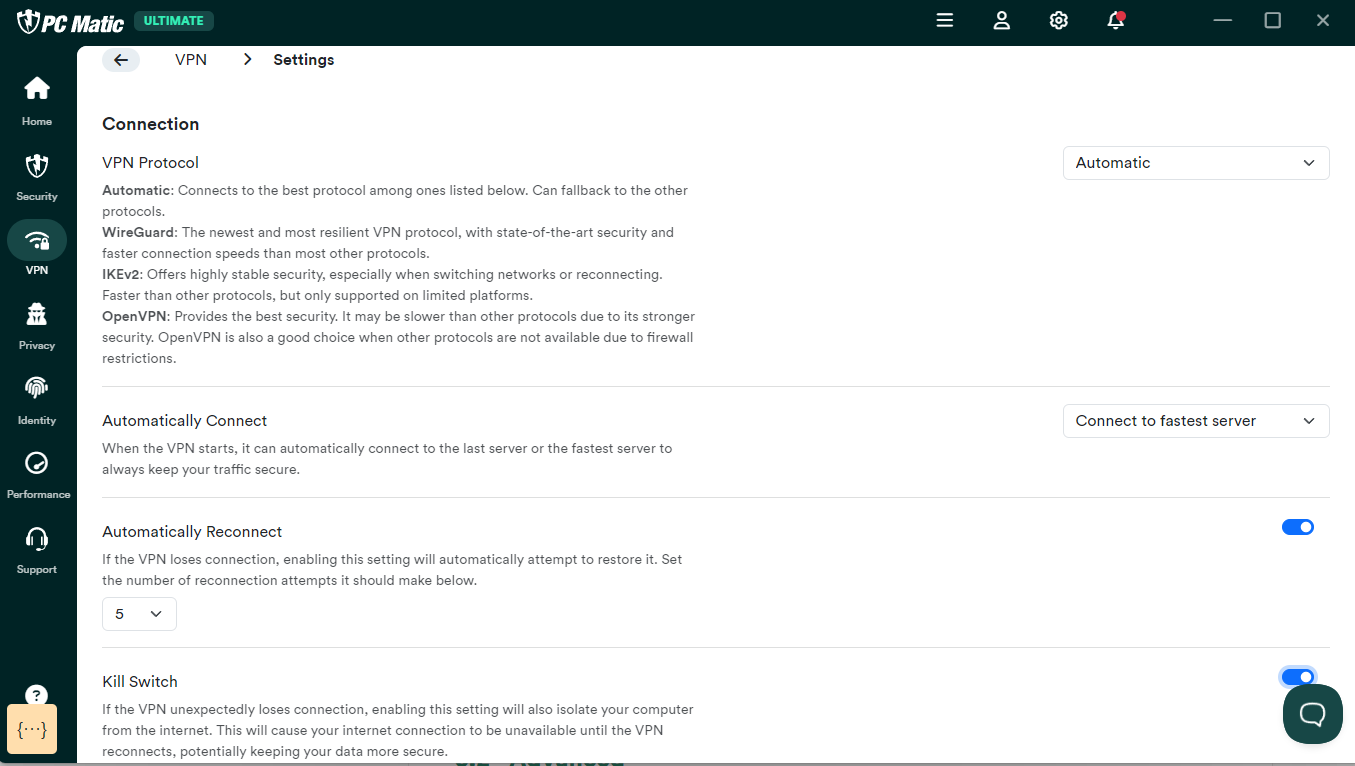
3.1 Connection Settings
The Connection Tab contains all the settings related to your VPN connection including: protocol, auto-connect, kill switch, and more.
3.2 Advanced Settings
The Advanced Tab contains settings for DNS Leaks, Threat Protection, and IPv6 Leaks.
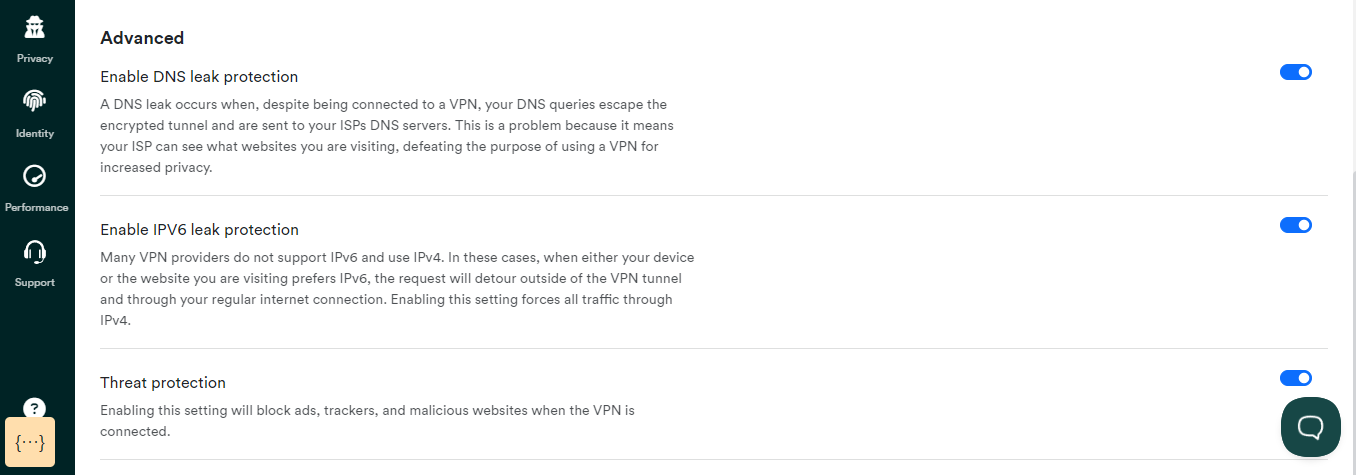
Tip: If you’re unsure, leave the advanced settings as they are. The app is set up for security by default.
4. VPN Status
VPN Status Page: Using the link below, you can check the status of our VPN, including the servers, support, and API. If you’re having trouble connecting to the VPN, check this page to ensure there are no performance issues from PC Matic’s side.
https://www.pcmatic.com/vpn/status.asp
Final Thoughts
The PC Matic VPN is an easy, powerful tool to help protect your privacy and keep you safe online. Whether you’re at home or on the go, it only takes a few clicks to lock down your connection.
Want to give it a try? Learn more and get started here! https://cart.pcmatic.com/go.asp?id=510740